Interface Guide: Navigate the SnowB BMF Workspace
Complete guide to the SnowB BMF user interface. Try it free — no download required.
The interface has three panels: Font Configuration (left), Preview Area (center), and Style Configuration (right). Here is what each panel does.
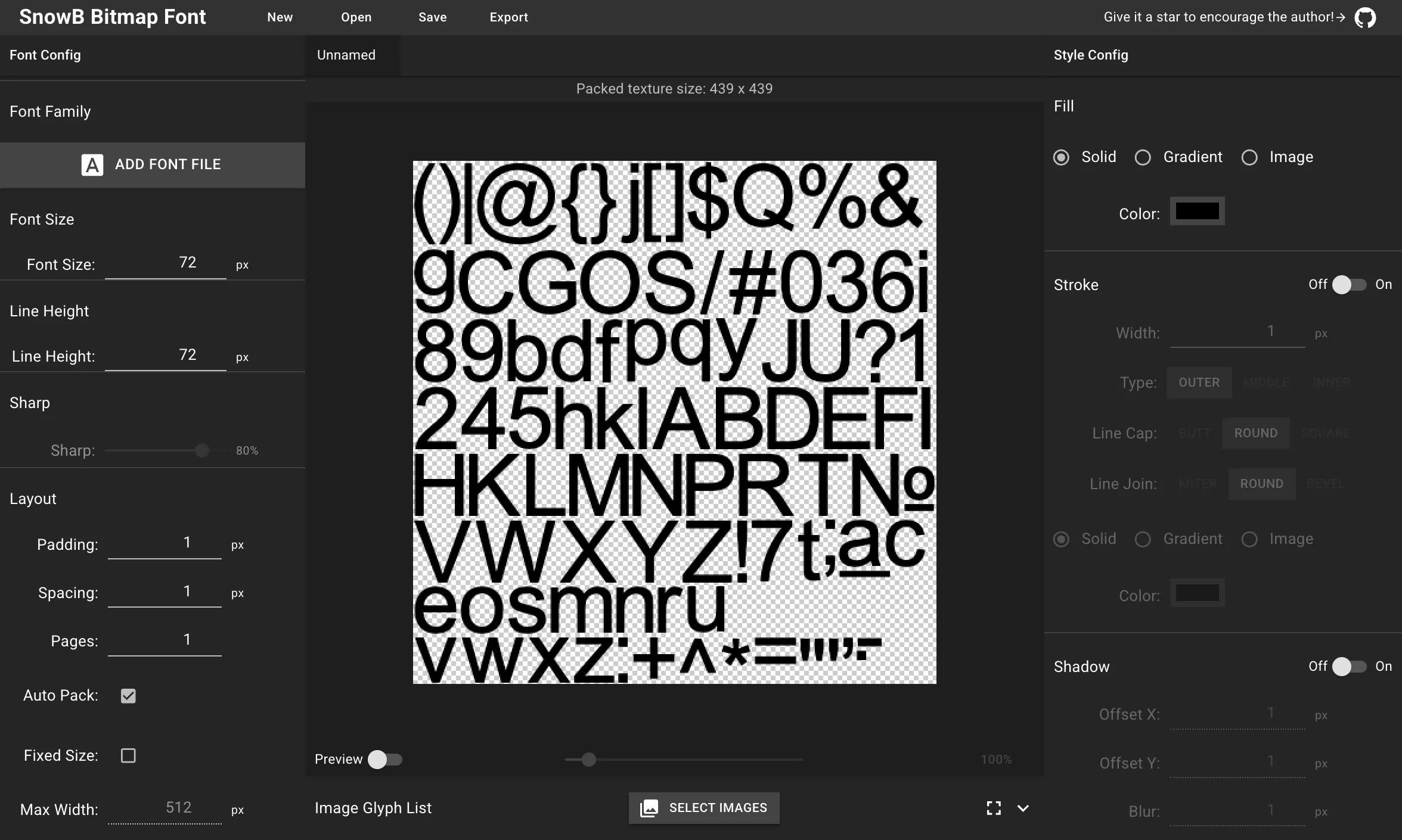
Main Interface Layout
Section titled “Main Interface Layout”Top Menu Bar
Section titled “Top Menu Bar”The top menu provides core file operations:
- New - Create a new bitmap font project
- Open - Load existing project files (.sbf or .ltr formats)
- Save - Save your current project
- Export - Export bitmap fonts and texture atlases
The project name is displayed in the center (shows “Unnamed” for new projects).
Three-Panel Layout
Section titled “Three-Panel Layout”The interface is organized into three sections.
Left Panel - Font Configuration
Section titled “Left Panel - Font Configuration”Font settings and layout options live here:
- Font Family: Upload font files (TTF, OTF, WOFF formats)
- Font Size & Line Height: Control glyph size and vertical spacing
- Sharp: Adjust font rendering sharpness for crisp or soft edges
- Layout Settings: Configure padding, spacing, and texture atlas organization
- Auto Pack: Enable automatic texture optimization for efficient space usage
- Size Controls: Set maximum width and choose between fixed or dynamic texture sizing
- Global Metric Adjustments: Fine-tune character positioning with xAdvance, xOffset, and yOffset controls
Center Panel - Preview Area
Section titled “Center Panel - Preview Area”Real-time preview of your bitmap font:
- Texture Atlas Display: Shows all generated glyphs packed efficiently with transparent background (checkered pattern)
- Size Information: Displays current texture dimensions (e.g., “439 x 439”)
- Preview Controls: Zoom slider for detailed inspection and fullscreen toggle
- Image Glyph Support: Add custom image glyphs via “SELECT IMAGES” button
- Real-time Updates: Changes show up immediately when you adjust settings
Right Panel - Style Configuration
Section titled “Right Panel - Style Configuration”Style your font glyphs here:
- Fill Options: Choose between solid colors, gradients, or texture-based fills with color picker
- Stroke Settings: Add outlines with customizable width, type (outer/inner/center), line caps, and joins
- Shadow Effects: Apply drop shadows with adjustable offset, blur, and styling options
- Style Types: Each effect supports solid, gradient, or image-based styling
- Toggle Controls: On/off switches for stroke and shadow effects
Next Steps
Section titled “Next Steps”See the Workflow Guide for step-by-step instructions on creating and exporting your first bitmap font.